
Finding keywords you can actually rank for is the hardest part of SEO when you’re starting out. SEO tools can be quite complicated for a beginner, overwhelming you with data that you don’t know the meaning of, or they cost $100+ per month before you’ve even started.
KW Finder, part of the Mangools suite, takes a different approach. It’s built around one job: helping you find low-competition keywords with a high search volume. It has a built-in keyword difficulty checker and a clean interface that doesn’t require SEO knowledge to navigate.
I have used KW Finder for my own keyword research, and in this review I will walk you through exactly what it does, how to use it and where it comes up short.
Quick verdict: KW Finder is the keyword research tool for people who are new to this and don’t want to spend a lot of money before seeing returns. The keyword difficulty checker is accurate and a lot cheaper than what other tools like SEMrush or Ahrefs charge for their services.
What is KW Finder?
KW Finder is a keyword research tool built by Mangools. It’s one of five tools that Mangools has. The others are SERPChecker, SERPWatcher, LinkMiner and SiteProfiler, but KW Finder is the one people use most frequently.
Its core function is simple: you type in a seed keyword, and it returns a list of related keyword ideas along with the keyword difficulty and search volume. What makes it stand out is how clearly it presents the data and how reliable the keyword difficulty scores are compared to other tools.
KWFinder is used by bloggers, freelancers, and small marketing teams who need a capable SEO keyword tool without paying enterprise prices.
KW Finder features
Keyword research
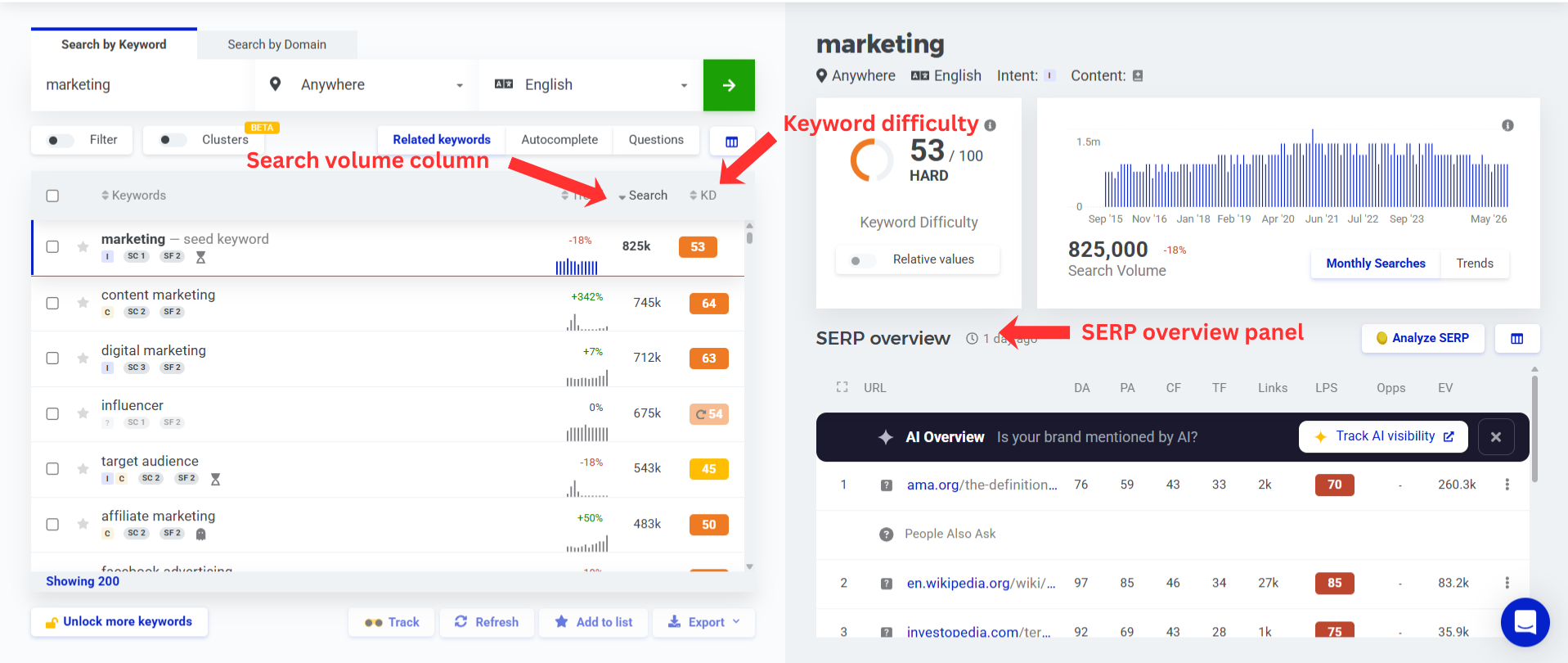
The main KW Finder interface is built around a search bar. First you enter a seed keyword, then you select your target location and desired language. In return you get a list of keyword ideas broken into three tabs:
- Suggestions: related terms and variations of your seed keyword
- Autocomplete: keywords based on Google’s autocomplete suggestions
- Questions: question-based variations (what is, how to, why does, …)
For most research sessions, the suggestions and questions tabs will be the most useful to you. The questions tab in particular is solid for finding informational keywords along with their difficulty scores, which is useful when you’re looking for FAQ-style content opportunities.
Each keyword row shows:
- Monthly search volume
- Keyword difficulty (KD) score
- Cost per click (CPC)
- PPC competition
- Search trend over the last 12 months
The search trend is an underutilized feature that is worth paying attention to. It allows you to see if the number of people that search for a keyword is growing or declining, and if seasonal factors are at play. This way you can determine whether it is worth targeting or not.
Location targeting is also an important feature. You can filter by country and see if your keyword has a strong presence in a specific country. This again allows you to determine whether it is worth targeting or not. Although it is recommended to select anywhere to have global reach.
Keyword difficulty checker
The keyword difficulty checker is the feature that matters the most, especially when you’re starting out and your website has a low domain authority (DA) and it’s where KW Finder genuinely becomes useful. Unlike other tools that bury their keyword difficulty checker behind multiple clicks, KW Finder surfaces it directly in the main result alongside search volume and trend data, simplifying the process.
What is keyword difficulty?
Keyword difficulty (KD) is a score, ranging from 0 to 100 where the higher the number, the harder it is to rank on the first page of Google Search. A higher score means stronger competition which means it will be harder to rank for it. A lower keyword difficulty signals it will be easier to rank for the keyword without a massive backlink profile or a high domain authority.
What does keyword difficulty mean in practice?
Different tools calculate keyword difficulty differently, but most of the factors that go into determining the authority of the pages currently ranking in the top 10 results are the same. This includes their backlink count, domain rating and how well-optimized their content is. KW Finder’s keyword difficulty scores are based on the link profiles of the top 10 ranking pages in Google for that keyword.
What does this mean in practice? A keyword difficulty of 30 does not mean it’s easy to rank, what it does mean is that the current top 10 pages have a relatively modest link profile compared to high-competition terms. This means that for a new blog with a low domain authority it will be more feasible to rank for.
What is a good keyword difficulty score?
For a new or low-authority site, it’s best to target keywords with a keyword difficulty below 30-35. Here is a rough guide:
| KD Score | Difficulty | Best For |
|---|---|---|
| 0-20 | Very easy | Brand new sites, hyper-niche topics |
| 21-35 | Easy to moderate | New-to-moderate authority blogs |
| 36-50 | Moderate | Sites with some established authority |
| 51-70 | Hard | High-authority sites |
| 71-100 | Very hard | Major publications, established domains |
KW Finder color-codes its KD scores from green to orange to red so you can easily see which keywords are worth pursuing and which aren’t.
One important caveat: not every keyword in KW Finder shows a computed keyword difficulty score right away. Some rows display a magnifying glass icon. This means that the difficulty hasn’t been calculated yet, this can easily be solved by clicking it after which the keyword difficulty gets determined.
SERP Analysis
Clicking on any keyword in KW Finder opens a SERP preview panel on the right side of the screen. This shows the top 10 ranking pages for that specific keyword, along with metrics for each:
- Domain authority (DA)
- Page authority (PA)
- Citation flow and trust flow
- Number of external backlinks
- Number of referring domains
This SERP view is where you move from “this keyword has a low KD score” to “can I actually beat these pages?” A keyword difficulty score of 28 looks attractive until you see that every ranking page has 400+ referring domains. This is why the SERP panel is so useful: it lets you know what you’re up against, without needing to open another tool.
Related and long-tail keywords
KW Finder surfaces long-tail variations automatically without needing your input. When you search a broad seed keyword, the suggestions list usually includes many longer, more specific variations which are often where the real opportunity lies.
Long-tail keywords usually have a lower search volume but also lower competition and a clearer search intent. A post targeting “KW Finder tutorial for beginners” will have less competition than “keyword research tool” and the searcher landing on it has a much clearer need that you can directly answer.
KWFinder pricing
KWFinder pricing is structured across three annual plans:
| Plan | Monthly (Annual) | Monthly (No Contract) |
|---|---|---|
| Basic | $29.90/mo | $49/mo |
| Premium | $44.90/mo | $69/mo |
| Agency | $89.90/mo | $129/mo |
Basic is well suited for solo bloggers and freelancers. It has 100 keyword lookups per day, 200 keyword suggestions per search, and access to all five Mangools tools. For someone publishing two or three posts a week, this is enough.
Premium increases limits quite a bit and supports up to three different users at a time. This is useful for small teams and unlocks unlimited competitor keyword lookups.
Agency is for high-volume users and larger teams. It has 1,200 keyword lookups per day and supports up to 10 users.
All plans come with a free trial, no credit card required. This means you get access to the whole Mangools suite to evaluate whether it is the right fit for you before deciding.
KW Finder pros and cons
Pros:
- A clean and beginner-friendly interface
- Accurate keyword difficulty scores in this price range
- SERP Analysis built into the same view
- Questions tab surfaces long-tail content ideas reliably
- Free trial with no credit card
Cons:
- Uncomputed keyword difficulty scores
- Keyword database is smaller than SEMrush or Ahrefs
- Limited technical SEO audit functionality
Who is KW Finder best for?
Bloggers and content creators building affiliate-oriented websites — KW Finder is designed exactly for that use case. Finding low-competition keywords efficiently is the whole product.
Freelance marketers who handle keyword research for clients but don’t need the full feature depth of an enterprise tool.
Small marketing teams who want a shared keyword research tool the whole team can use without paying SEMrush or Ahrefs prices.
Beginners who are still learning SEO and want a tool that explains what the data means without drowning them in it.
It’s less suited to agencies running PPC campaigns alongside SEO, or to link builders who need deep backlink data as their primary function (Ahrefs wins here).
How KW Finder compares to other tools
If you’re evaluating KW Finder against other tools, the SEMrush alternatives comparison covers 5 different tools across different use cases and price points \u2014 including Mangools, SE Ranking and Moz Pro. If Ahrefs specifically is what you’re weighing it against, the KW Finder vs Ahrefs comparison goes deeper on that one match-up.
\nThe short version? For organic keyword research at an affordable price, KW Finder outperforms what you’d expect. The trade-off is breadth \u2014 SEMrush and Ahrefs cover more ground, but most people don’t fully utilize those platforms and don’t need to.
Conclusion
KW Finder has a solid reputation for a reason. Bloggers, freelancers and small marketing teams who need accurate keyword data find this to be a very practical tool in its price range.
The interface prioritizes data you actually need to make good decisions. It tells you which keywords have realistic competition, what the SERPs look like and whether a long-tail variation is worth your time — without burying you in features you won’t realistically need.
The main caveats worth keeping in mind: verify the uncomputed keyword difficulty scores individually and make sure your location is set to where you want it to be.
Pingback: KWFinder vs Ahrefs: Which One Is Worth It? - tooledmarketer.com