
Most keyword research tools throw fifty columns of data at you to show off their capabilities. KWFinder doesn’t. It builds around one question: can you rank for this keyword? That’s it.
This guide walks you through your first real KWFinder session, from start to finish. Fifteen minutes from account creation to a keyword list you can actually write from.
Step 1: create your free account
Go to Mangools.com and start the free trial. You don’t need a credit card to get in, and the free tier gives you enough searches to work through this whole guide.
If you’ve already read our KWFinder review, you know the interface is clean by design. You have one search box and everything else follows from there. Larry Ludwig’s independent review covers the same ground from an SEO consultant’s angle if you want a second opinion before diving in.
Step 2: run your first seed keyword
A seed keyword is a broad term for your topic, not the exact phrase you’re trying to rank for. If you run a baking blog, for example, don’t search “how to make sourdough bread with a dutch oven at 450 degrees.” Instead, simply search for “sourdough bread.”
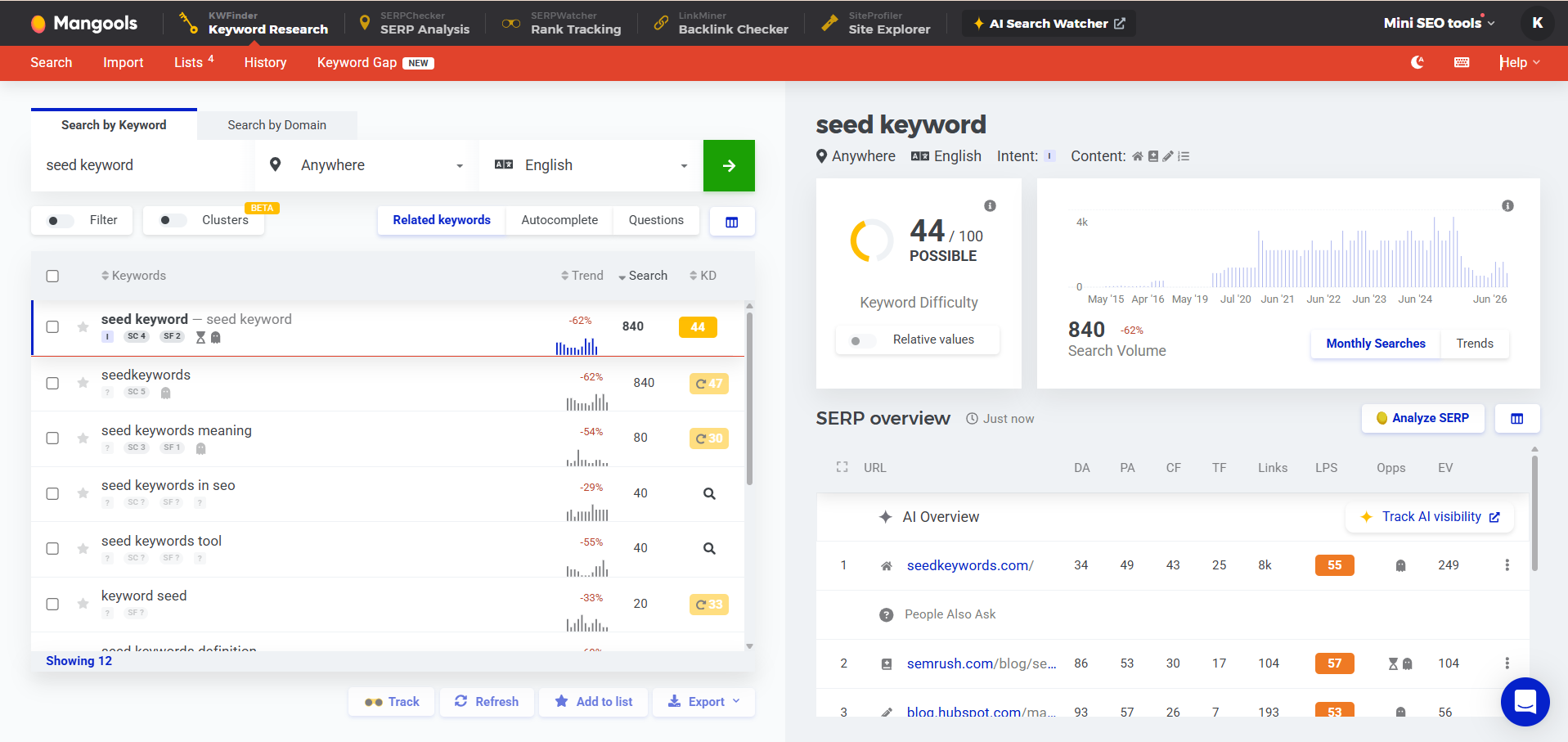
Type your seed into the search box and hit enter. KWFinder will return a list of keywords related to your seed keyword, each with its own search volume and keyword difficulty.
Step 3: set your location to worldwide
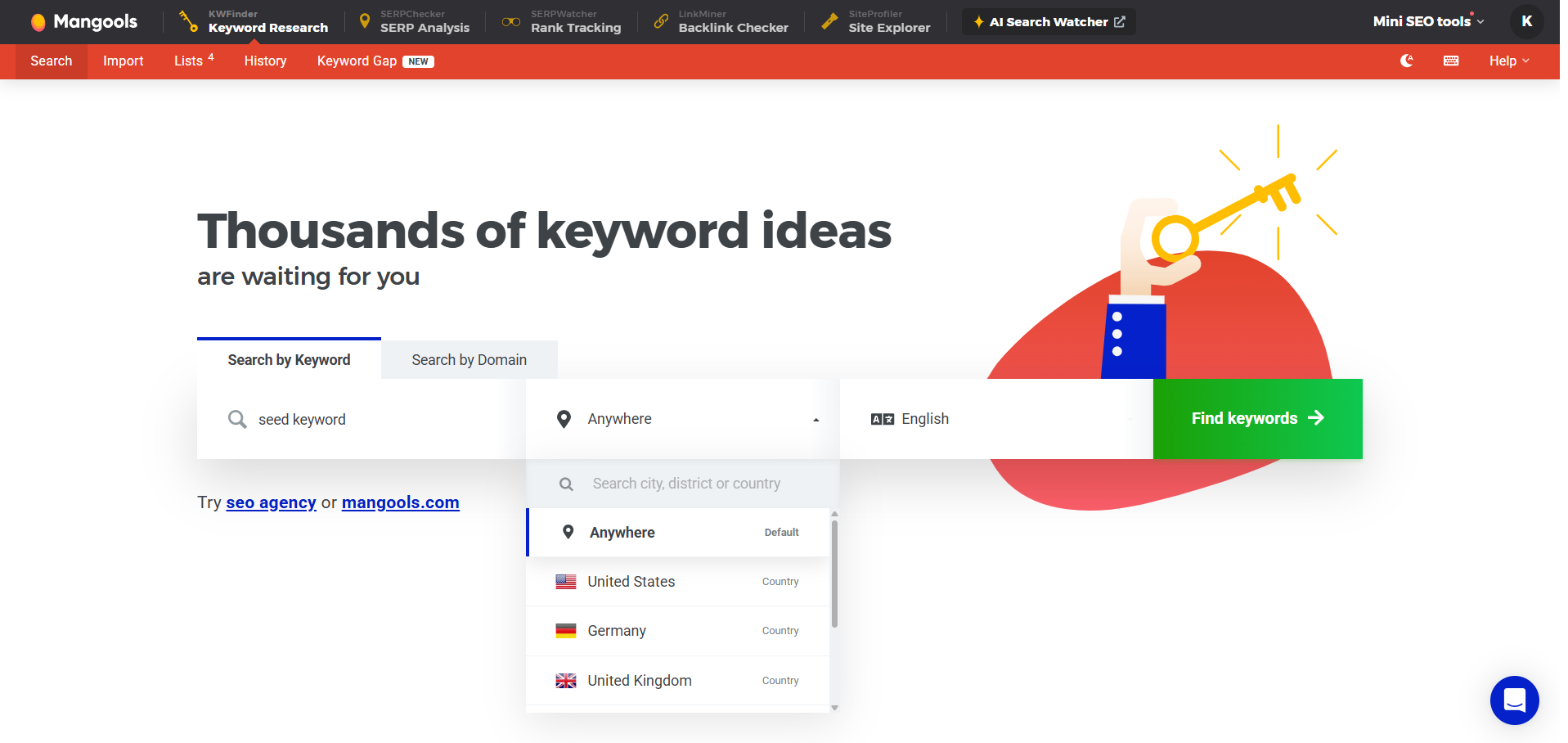
This is a common mistake among beginners. KWFinder defaults to a specific country (usually the US). Unless your content has a local focus, you should switch the location to anywhere (worldwide).
Why does this matter? US-only data hides most of your actual audience if you’re writing for people across the globe. A keyword that looks weak with only 90 monthly searches in the US might pull 900 worldwide.
Step 4: learn what the KD score means instead of trusting it blindly
Every keyword gets a keyword difficulty (KD) score from 0 to 100. The lower it is, the easier it is to rank; the higher, the harder. This part is simple. But here’s what you shouldn’t forget: a magnifying glass icon instead of a number means the score hasn’t been computed yet.
Make sure to never add an uncomputed keyword to your keyword list based on where it appears in a filtered search. It could jump from looking easy to rank for to impossible to rank for once it finishes loading.
Step 5: filter before you start scrolling
KWFinder can return hundreds of related keywords. If you filter, you don’t need to read through all of them one by one.
- Set a KD ceiling that matches your site’s authority. A brand-new site should stay under 20, maybe 35 if you’re willing to manually verify the SERP.
- Set a minimum search volume, usually 50 or higher, so you’re not chasing keywords that nobody searches for.
- Use the questions tab separately. It gives you the exact phrasing people use when they’re searching, which is useful as a guide for your FAQ.
Step 6: check the SERP before you commit
This is a crucial step most beginners miss, and it’s actually the one that matters most. A low KD score is a prediction, not a guarantee.
Open SERPChecker for any keyword you’re seriously considering and look at who’s already ranking in the top 10. If the results are dominated by high-authority domains, you should reconsider, regardless of what the KD number says. If most of the top 10 are smaller sites with thin or outdated content, you have a good shot at ranking.
Look for one page in the top five you can genuinely beat: something short, something old, something that misses an important angle on the topic you’d like to cover.
Step 7: build your list and track what you publish
Once you’ve filtered and SERP-checked all the keywords on your list, add them to a KWFinder list (top right of the results table). This way you don’t have to search them again later. When you publish content that targets one of these keywords, add it to SERPWatcher to track how your position moves week over week.
Common mistakes to avoid
- Chasing volume alone: a keyword with 5,000 searches and a KD of 60 will bury a new site. A keyword with 80 searches and a KD of 12 might actually rank.
- Trusting an uncomputed KD score: always click through and confirm the number is accurate.
- Skipping the manual SERP check: KD is an estimate, the actual search results are the truth.
- Targeting head terms too early: “SEO” or “keyword research” aren’t winnable for a new site; the long-tail phrases around them are.
For a step-by-step walkthrough of the interface itself, MH Themes’ KWFinder tutorial is a solid companion piece if you want more screenshots than we’ve included here.
What to do next
Once you’ve got a working keyword list, you can start writing. Write content that actually matches people’s search intent. If you’re still deciding whether KWFinder is the right tool for you in the first place, our full KWFinder review breaks down how much it costs and its pros and cons, including how it compares to Ahrefs and SEMrush.
Try KWFinder free for 10 days, no credit card required.
Frequently Asked Questions
Yes, for a limited number of searches. The free trial doesn’t require a credit card and gives you enough lookups to work through your first real keyword list. Paid plans start at $29.90/month (billed annually) once you need more searches or want to track rankings in SERPWatcher.
It’s a solid starting estimate, not a final answer. KD scores are calculated from backlink and content signals on the current top-ranking pages, but they can’t account for everything, like a page’s freshness or how thoroughly it covers the topic. Always pair the KD number with a manual SERP check before committing.
No. That’s the point of the tool. The interface has one search box and a handful of filters, and the guide above covers everything a first-time user needs. You’ll pick up the deeper concepts, like why SERP quality matters more than the KD number, as you go.
Keyword Planner is built for advertisers bidding on keywords, so its volume data is skewed toward commercial intent and it doesn’t score organic ranking difficulty at all. KWFinder is built specifically for SEO, with a dedicated KD score and SERP analysis baked into every search.